Deploying Traefik with Docker Compose in My Homelab
Author: Vivek Chandran
Date: September 9, 2024
Introduction
In my homelab, I use Traefik as a modern reverse proxy and load balancer to manage routing and SSL termination for my containerized applications. Traefik simplifies the process of configuring and maintaining services by automating service discovery and handling dynamic configurations. Given the importance of efficient and secure traffic management, I have set up Traefik using Docker Compose with a specific configuration tailored to my needs.
This article provides an overview of Traefik, explains the configuration details in the Docker Compose file, and outlines how to set up and use Traefik effectively in a homelab environment.
What is Traefik?
Traefik is a cutting-edge reverse proxy and load balancer designed to handle the dynamic nature of modern microservices architectures. It integrates seamlessly with container orchestration systems like Docker and Kubernetes, automatically discovering and configuring services. Traefik also provides built-in support for Let's Encrypt, allowing automatic SSL certificate management, and offers features such as a real-time dashboard and metrics collection.
Docker Compose Configuration
Below is the Docker Compose file used to deploy Traefik in my homelab environment:
version: '3.8'

services:
  traefik:
    container_name: ChTraefik1P
    image: traefik:latest
    command:
      - "--api.dashboard=true"
      - "--api.insecure=true"  # Changed to false for secure mode
      - "--providers.docker=true"
      - "--entrypoints.web.address=:80"
      - "--entrypoints.websecure.address=:443"
      - "--entrypoints.dashboard.address=:5012"  # Adjusted the dashboard port to 8080
      - "[email protected]"
      - "--certificatesresolvers.staging.acme.storage=/CH/docker/traefik/certs/acme.json"
      - "--certificatesresolvers.staging.acme.httpChallenge.entryPoint=web"
      - "--certificatesresolvers.staging.acme.caServer=https://acme-staging-v02.api.letsencrypt.org/directory"
      - "--certificatesresolvers.production.acme.email=vivek@chandran.co.nz"
      - "--certificatesresolvers.production.acme.storage=/CH/docker/traefik/certs/acme.json"
      - "--certificatesresolvers.production.acme.httpChallenge.entryPoint=web"
      - "--certificatesresolvers.production.acme.caServer=https://acme-v02.api.letsencrypt.org/directory"
      - "--serversTransport.insecureSkipVerify=false"
      - "--entrypoints.web.http.redirections.entryPoint.to=websecure"  # Redirect from port 80 to 443
      - "--entrypoints.web.http.redirections.entryPoint.scheme=https"  # Redirect using HTTPS
    ports:
      - "80:80"
      - "443:443"
      - "5003:8080"  # Adjusted the dashboard port to 8080
    volumes:
      - "/run/user/1000/docker.sock:/var/run/docker.sock"
      - "/CH/docker/traefik/traefik.log:/var/log/traefik.log"
      - "/CH/docker/traefik/access.log:/var/log/access.log"
      - "/CH/docker/traefik/certs:/CH/docker/traefik/certs"
    restart: always
    environment:
      - TZ=Pacific/Auckland
Docker Compose Configuration Details
Container Name and Image
- container_name:
ChTraefik1P - image:
traefik:latest
Specifies the container name and the image version for Traefik.
Command
Configures Traefik's behavior using various flags:
--api.dashboard=true: Enables the Traefik dashboard for monitoring.--api.insecure=true: Allows access to the dashboard without authentication (recommended to change tofalsefor production).--providers.docker=true: Activates Docker as a provider for auto-discovery of Docker containers.--entrypoints.web.address=:80: Configures Traefik to listen on port 80 for HTTP traffic.--entrypoints.websecure.address=:443: Configures Traefik to listen on port 443 for HTTPS traffic.--entrypoints.dashboard.address=:5012: Sets the dashboard to be accessible on port 5012 (adjusted to 8080).--certificatesresolvers.staging.acme.emailand--certificatesresolvers.production.acme.email: Configures email for Let's Encrypt ACME certificates.--certificatesresolvers.staging.acme.storageand--certificatesresolvers.production.acme.storage: Specifies the storage locations for ACME certificates.--certificatesresolvers.staging.acme.httpChallenge.entryPoint=weband--certificatesresolvers.production.acme.httpChallenge.entryPoint=web: Sets the challenge entry point for certificate issuance.--certificatesresolvers.staging.acme.caServerand--certificatesresolvers.production.acme.caServer: Specifies the ACME CA servers for staging and production.--serversTransport.insecureSkipVerify=false: Ensures Traefik verifies certificates of backend servers.--entrypoints.web.http.redirections.entryPoint.to=websecure: Redirects HTTP traffic to HTTPS.--entrypoints.web.http.redirections.entryPoint.scheme=https: Enforces HTTPS redirection.
Ports
80:80: Maps HTTP port 80 on the host to port 80 in the container.443:443: Maps HTTPS port 443 on the host to port 443 in the container.5003:8080: Maps port 5003 on the host to port 8080 in the container for the Traefik dashboard.
Volumes
/run/user/1000/docker.sock:/var/run/docker.sock: Allows Traefik to interact with the Docker daemon./CH/docker/traefik/traefik.log:/var/log/traefik.log: Stores Traefik logs./CH/docker/traefik/access.log:/var/log/access.log: Stores access logs./CH/docker/traefik/certs:/CH/docker/traefik/certs: Stores SSL certificates.
Restart Policy
restart: always: Ensures that Traefik restarts automatically if it fails.
Environment
TZ=Pacific/Auckland: Sets the timezone for the Traefik container.
How to Deploy
Step 1: Save the Docker Compose File
- Save the above Docker Compose configuration to a file named
docker-compose.ymlin your desired directory.
Step 2: Deploy Traefik
- Open a terminal, navigate to the directory where you saved the
docker-compose.ymlfile, and run:
docker-compose up -d
This command will start the Traefik container in detached mode.
Step 3: Access the Traefik Dashboard
- Navigate to
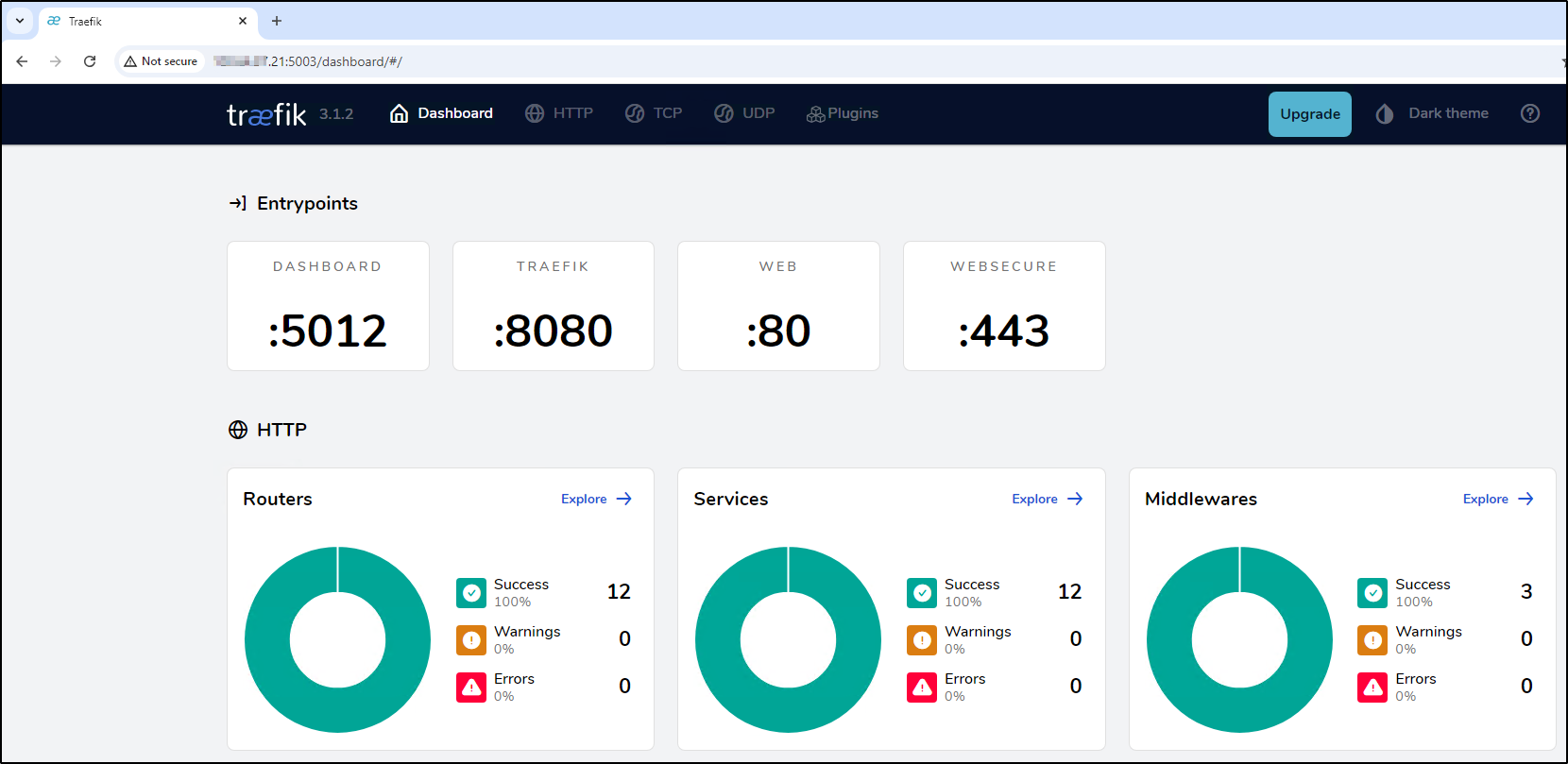
http://<your-server-ip>:5003(or the port you configured) to access the Traefik dashboard.
Managing with Portainer
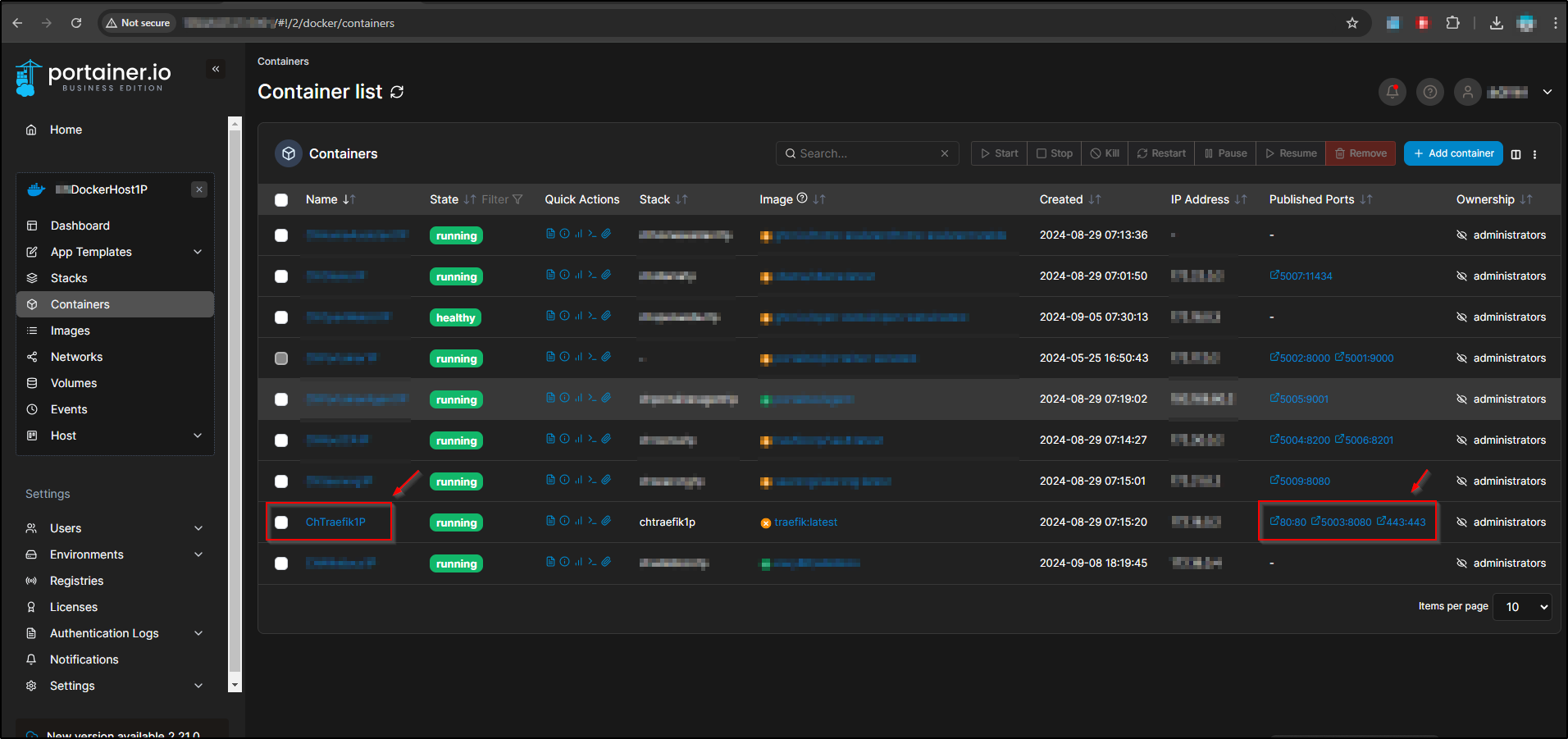
To manage my Docker containers efficiently, I use Portainer, which provides a comprehensive web UI for Docker container management. Here’s how you can verify if the Traefik container is running using Portainer:
Directory Structure and Security
In my homelab setup, I use the /CH/docker directory as the root directory to host all my Docker containers and associated files. This directory structure allows for organized storage of container data and logs.
Directory Structure
- Root Directory:
/CH/docker- Logs and Certificates: Stored in subdirectories within
/CH/docker, such as/CH/docker/traefik/traefik.log,/CH/docker/traefik/access.log, and/CH/docker/traefik/certs.
- Logs and Certificates: Stored in subdirectories within
Security Measures
-
Dedicated User Account: I created a dedicated user account specifically for running Docker containers. This account has been granted read and write permissions to the
/CH/dockerfolder. This setup ensures that Docker processes have the necessary permissions to manage container files while maintaining separation from other system operations. -
Rootless Mode: My Docker host server operates in rootless mode, which enhances security by allowing Docker to run without root privileges. Running Docker in rootless mode minimizes potential security risks by reducing the attack surface and isolating container operations from the host system.
Conclusion
Deploying Traefik in your homelab using Docker Compose streamlines the management of routing and SSL termination for your applications. The provided configuration sets up Traefik with essential features like automatic SSL certificate management, HTTP to HTTPS redirection, and a real-time monitoring dashboard. By automating these tasks, Traefik helps maintain a secure and efficient network infrastructure in your homelab environment.
Feel free to adjust the configuration based on your specific requirements and continue to leverage Traefik’s powerful features to optimize your containerized applications.