Retrieve Audit Policy Settings from Remote Servers
Author: Vivek Chandran
Date: August 27, 2024
Introduction
In our organization, providing evidence of server configurations is a critical part of the Certification and Accreditation (C&A) process. This often requires screenshots of various configurations from each server, which can be a time-consuming and tedious task when done manually. To streamline this process, I developed a PowerShell script that automates the retrieval of audit policy settings from multiple remote Windows Servers. This script allows us to remotely query the servers, collect the audit policies and capture screenshots of the results, which can then be attached to the evidence document efficiently.
The script prompts for server names or IP addresses, checks connectivity and retrieves audit policy configurations while filtering out unnecessary entries.
Key Features of the Script:
- Multiple Server Support: Allows you to specify multiple servers at once.
- Connectivity Check: Ensures that the server is reachable before attempting to retrieve audit policies.
- Filtered Output: Excludes entries with "No Auditing" and removes blank lines from the output for clarity.
Prerequisites
To use this script, ensure you have the following:
- PowerShell Remoting Enabled: PowerShell Remoting should be enabled on the remote servers.
- Sufficient Permissions: You need to have the necessary permissions to access the audit policy settings on the remote servers.
- Network Connectivity: Ensure that the servers are reachable over the network.
Script to Retrieve Audit Policy Settings
Here's the PowerShell script that retrieves audit policy settings from specified remote servers:
<#
.SYNOPSIS
    Retrieves the audit policy configuration from multiple remote Windows Servers.

.DESCRIPTION
    This script prompts the user to enter the names or IP addresses of remote Windows Servers, separated by commas.
    It checks if each server is reachable and retrieves the audit policy configuration using the `auditpol` command.
    The output is filtered to exclude any entries with "No Auditing" and to remove any unnecessary blank lines.

.NOTES
    Author: Vivek Chandran
    Date  : 27th August 2024

.EXAMPLE
    Run the script and enter server names or IP addresses when prompted.
    [Output of the filtered audit policy configuration for each server]
#>

# Prompt the user to enter the server names or IP addresses
$ServerNames = Read-Host "Enter the names or IP addresses of the remote Windows Servers, separated by commas"

# Split the input into an array of server names
$servers = $ServerNames -split ','

foreach ($serverName in $servers) {
    $serverName = $serverName.Trim()  # Remove any extra spaces around server names

    # Check if the server is reachable
    if (Test-Connection -ComputerName $serverName -Count 1 -Quiet) {
        try {
            # Run the command on the remote server
            Invoke-Command -ComputerName $serverName -ScriptBlock {
                auditpol /get /category:* |
                Select-String -Pattern "No Auditing" -NotMatch |
                Where-Object { $_.Line.Trim() -ne "" } |
                ForEach-Object { $_.Line }
            }
        } catch {
            Write-Error "Failed to retrieve audit policy from $serverName. Error: $_"
        }
    } else {
        Write-Host "The server $serverName is not reachable. Please check the server name or network connection." -ForegroundColor Red
    }

    Write-Host "" # Separator between server outputs
}
How to Use This Script
Step 1: Save the Script
Copy and save the above script into a .ps1 file, for example, Get-AuditPolicy.ps1.
Step 2: Run the Script
Open PowerShell and navigate to the folder where you saved the script. Execute the script using the following command:
.\Get-AuditPolicy.ps1 -ServerNames "Server01,Server02,192.168.1.10"
Step 3: Review Output
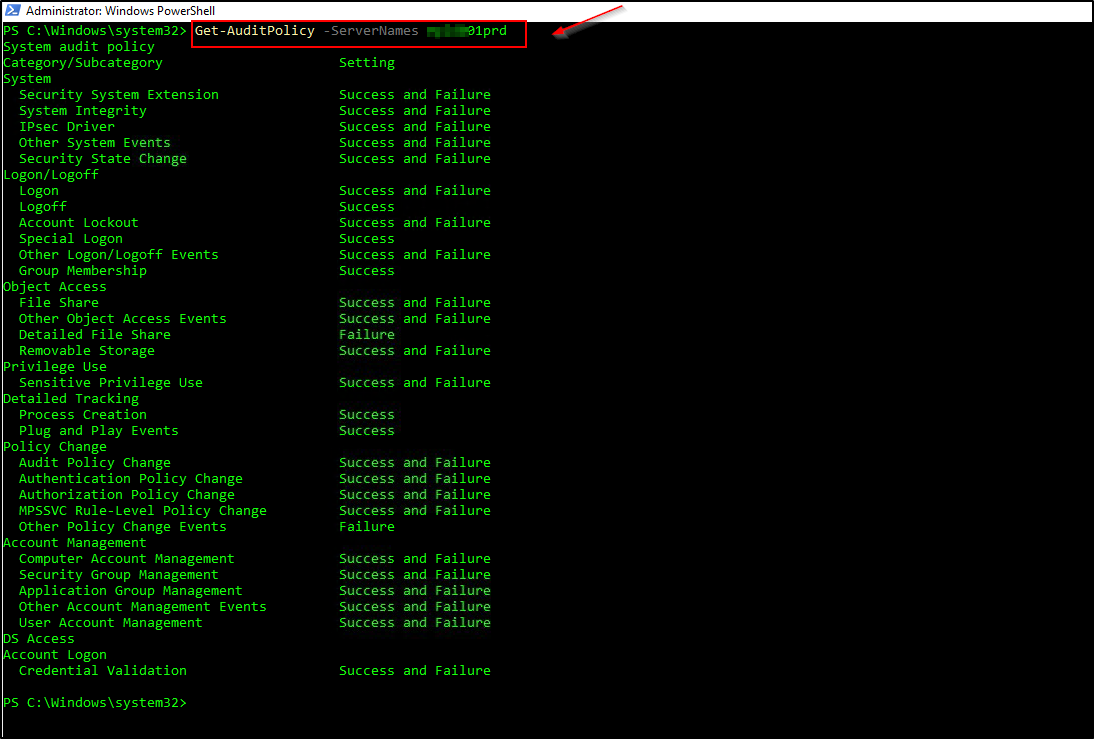
The script will output the filtered audit policy configuration for each server, excluding entries with "No Auditing" and removing unnecessary blank lines.
Sample Output:
Audit Policy for Server01:
Account Logon:
  - Success
  - Failure

Logon/Logoff:
  - Success
  - Failure

----------------------------

Audit Policy for Server02:
Account Logon:
  - Success
  - Failure

Logon/Logoff:
  - Success
----------------------------
Conclusion
This PowerShell script simplifies the process of retrieving and reviewing audit policy settings from multiple remote Windows Servers. By automating the collection of audit settings, it helps ensure that your servers are configured according to your organization's security and compliance requirements.
Feel free to modify the script as needed to fit your specific needs. I hope this script helps you maintain effective audit policies across your server environment!