Automating Azure VM Shutdown and Startup
Author: Vivek Chandran
Date: October 28, 2024
Introduction
Recently, I received a request at work to implement an automated solution for shutting down and starting up Virtual Machines at specified times to optimize costs. While the initial thought was to use Windows Task Scheduler on a server, this approach had limitations:
- Requires a dedicated always-on Windows server
- Single point of failure
- Limited monitoring capabilities
- No built-in high availability
Azure Automation Account emerged as a superior solution because it offers:
- Serverless execution
- Built-in high availability
- Comprehensive monitoring
- Native Azure integration
- Cost-effective implementation
Prerequisites
- An Azure subscription with active credentials
- A running Virtual Machine in Azure
- Appropriate permissions to create and manage Azure Automation resources
Implementation
1. Creating an Azure Automation Account
- Navigate to the Azure Portal
- Search for "Automation Accounts"
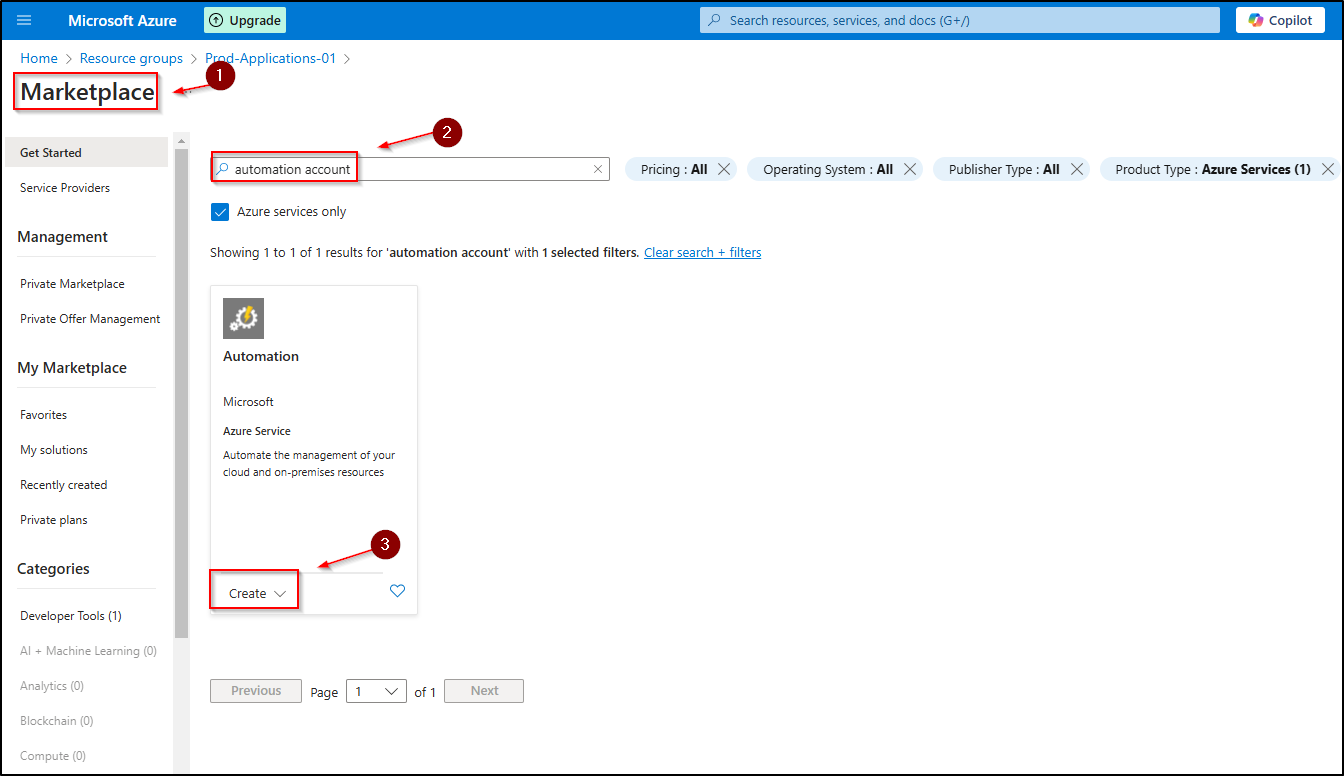 4. Click Create and configure the following:
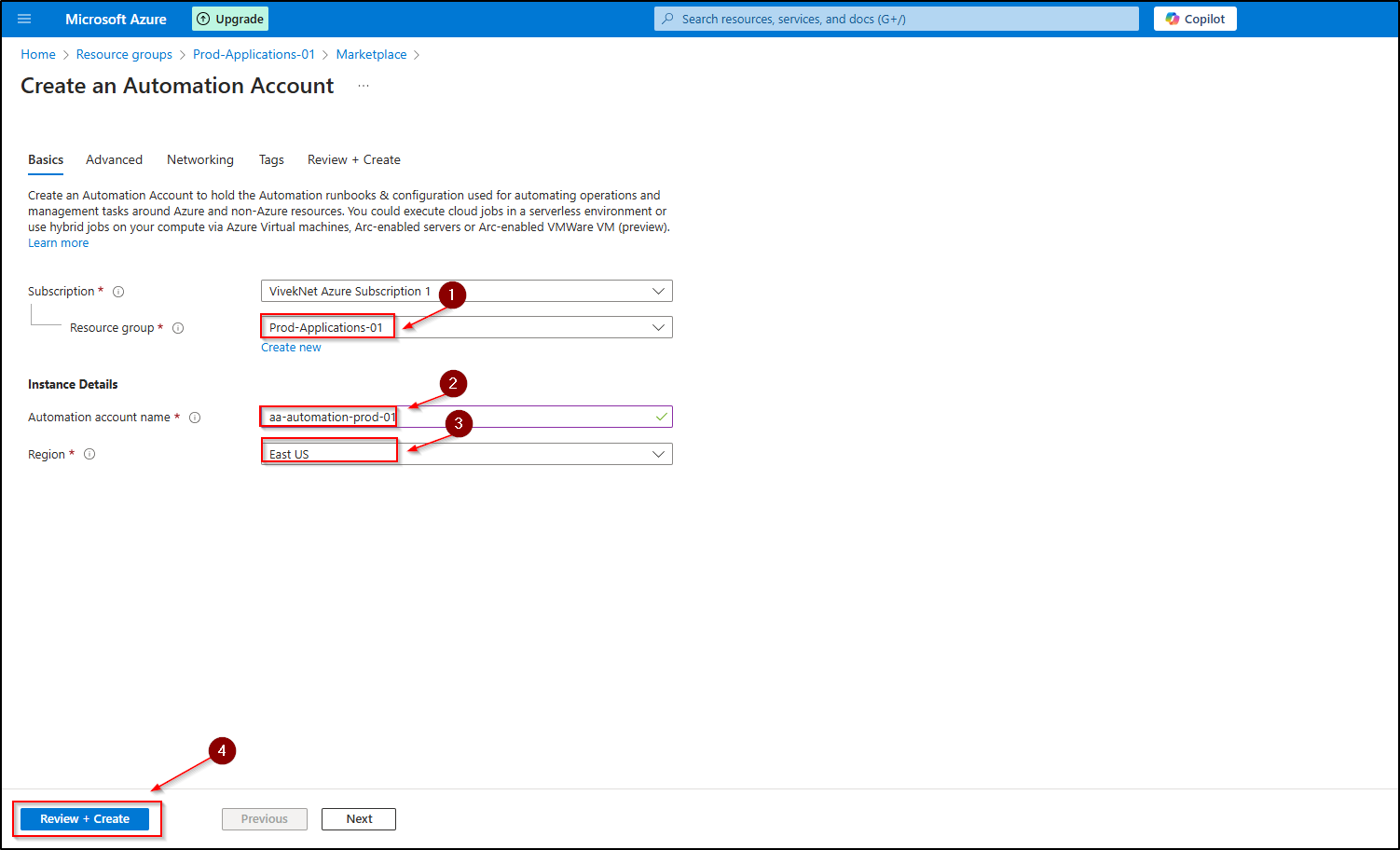
- Name: Choose a unique name
- Resource Group: Select or create new
- Location: Choose same region as your VM
- Click Review + create followed by Create
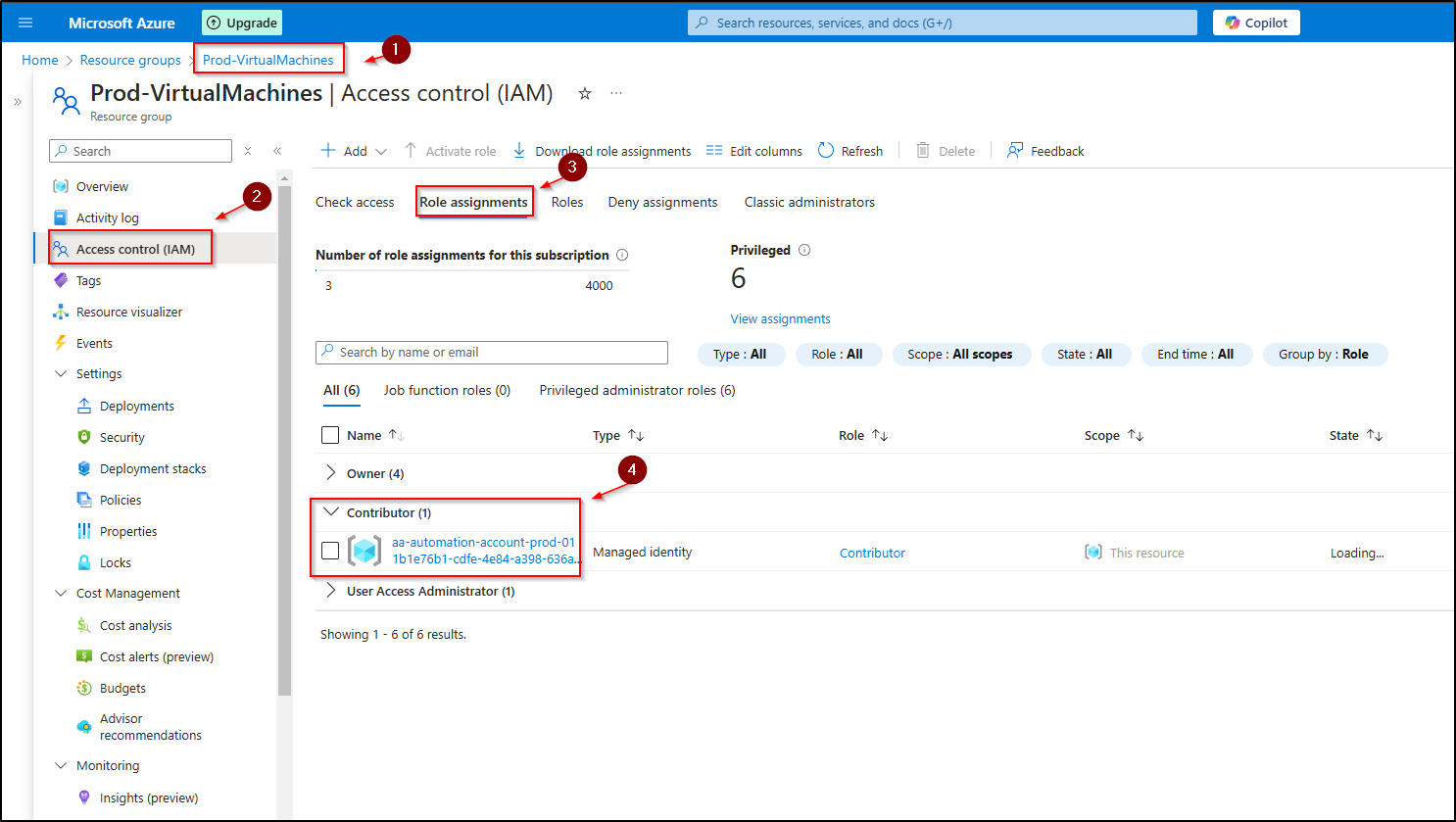
- Assign Contributor role to the Managed Identity:
- Go to your target VM Resource Group
- Select Access control (IAM) from the left menu
- Click Add > Add role assignment
- Select Contributor as the role
- In the Assign access to dropdown, choose Managed Identity
- Select Automation Account in the next dropdown
- Choose your Automation Account from the list
- Click Review + assign to complete the assignment
2. Required Module Configuration
Navigate to your newly created Automation Account and import these essential modules:
- Az.Compute
- Az.Accounts
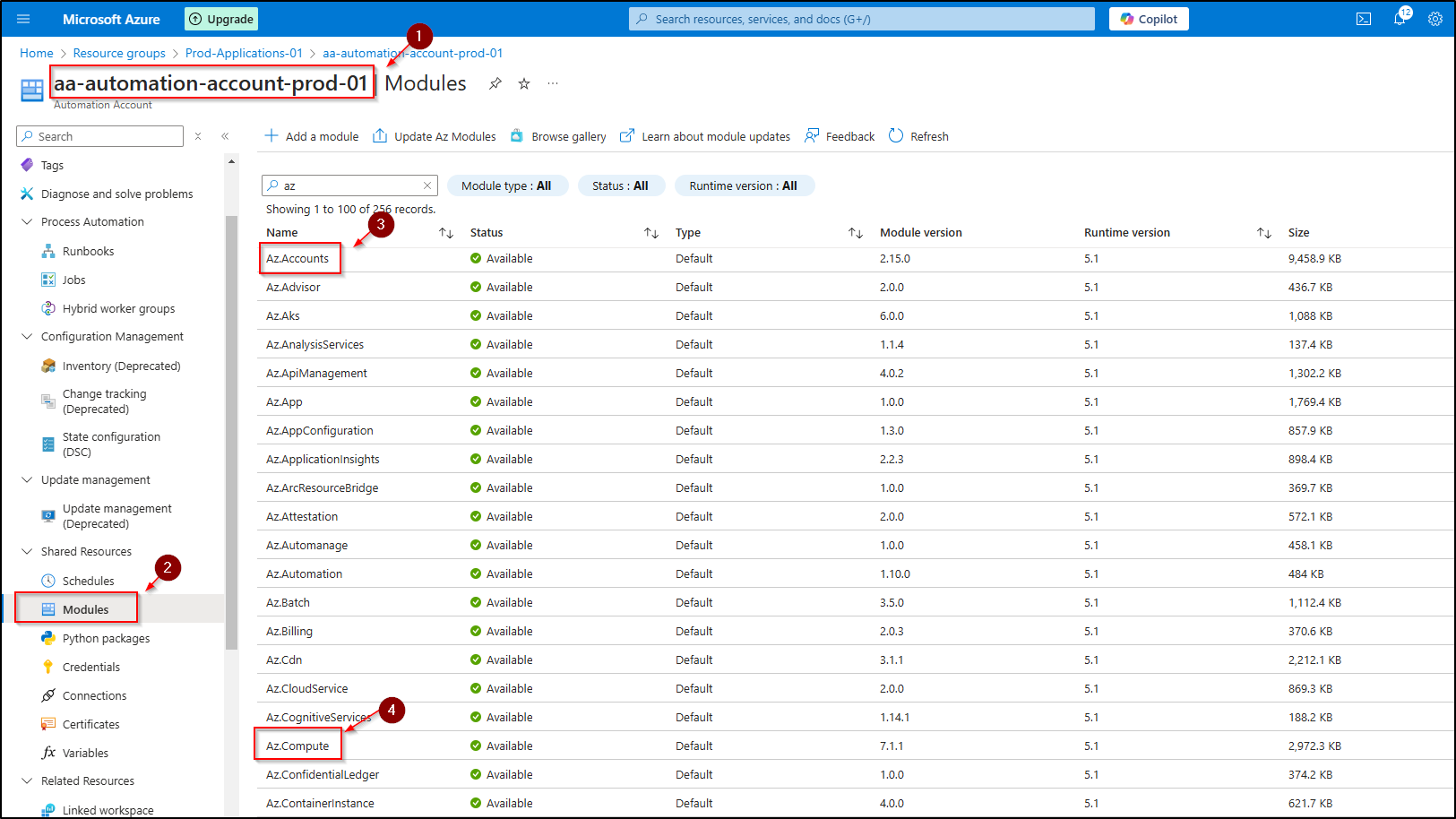
To import modules:
- Go to Shared Resources → Modules
- Search for each module
- Import if not already present
3. Creating Automation Runbooks
Shutdown Runbook
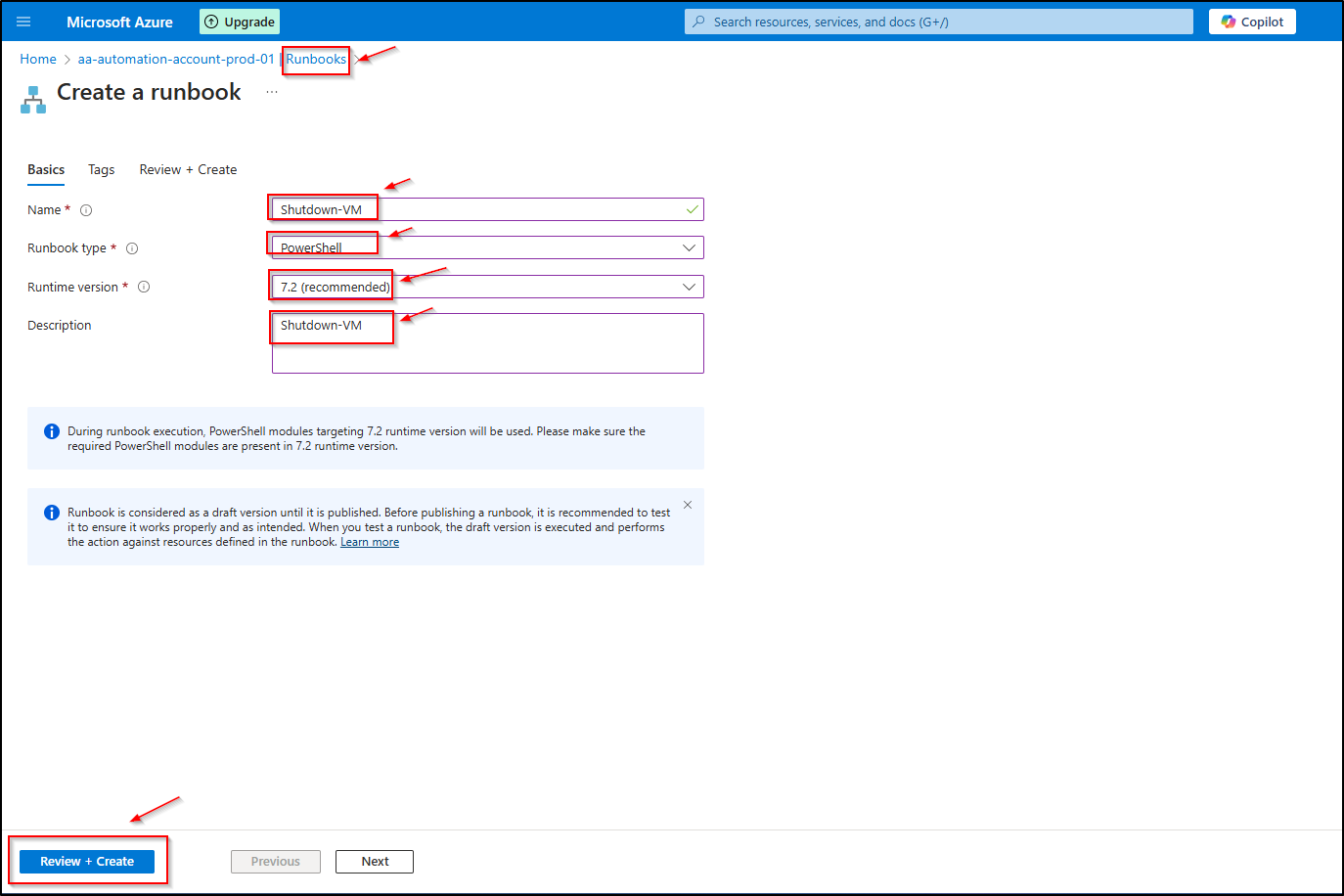
- Navigate to Process Automation → Runbooks → Create a runbook
- Configure the runbook:
- Name:
Shutdown-VM - Runbook type: PowerShell
- Click Create
- Name:
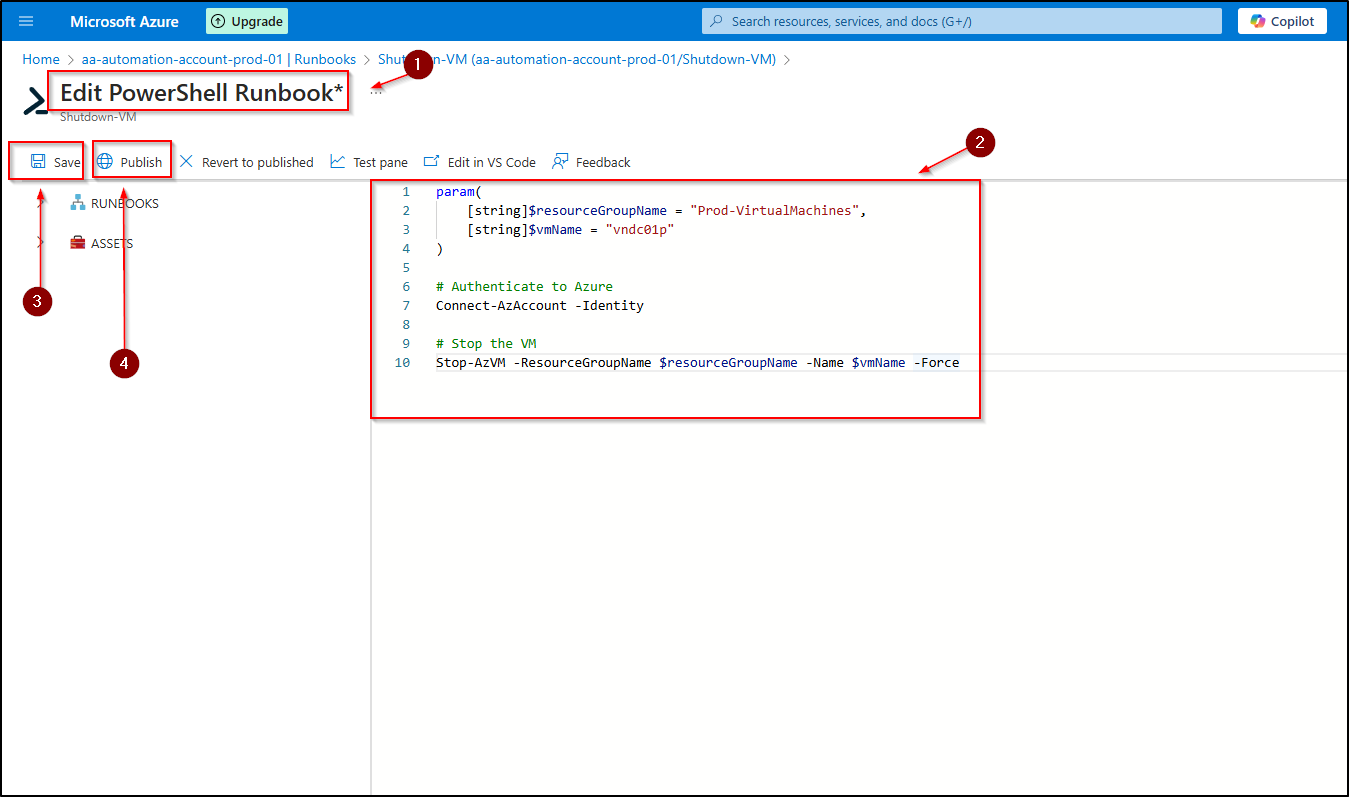
- Use the following PowerShell script in the editor:
param(
    [string]$resourceGroupName = "YourResourceGroupName",
    [string]$vmName = "YourVirtualMachineName"
)

# Authenticate to Azure
Connect-AzAccount -Identity

# Stop the VM
Stop-AzVM -ResourceGroupName $resourceGroupName -Name $vmName -Force
Note: Remember to replace placeholder values (like YourResourceGroupName and YourVirtualMachineName) with your actual Azure resource information before implementing the solution. 4. Click Save and then Publish the runbook
Startup Runbook
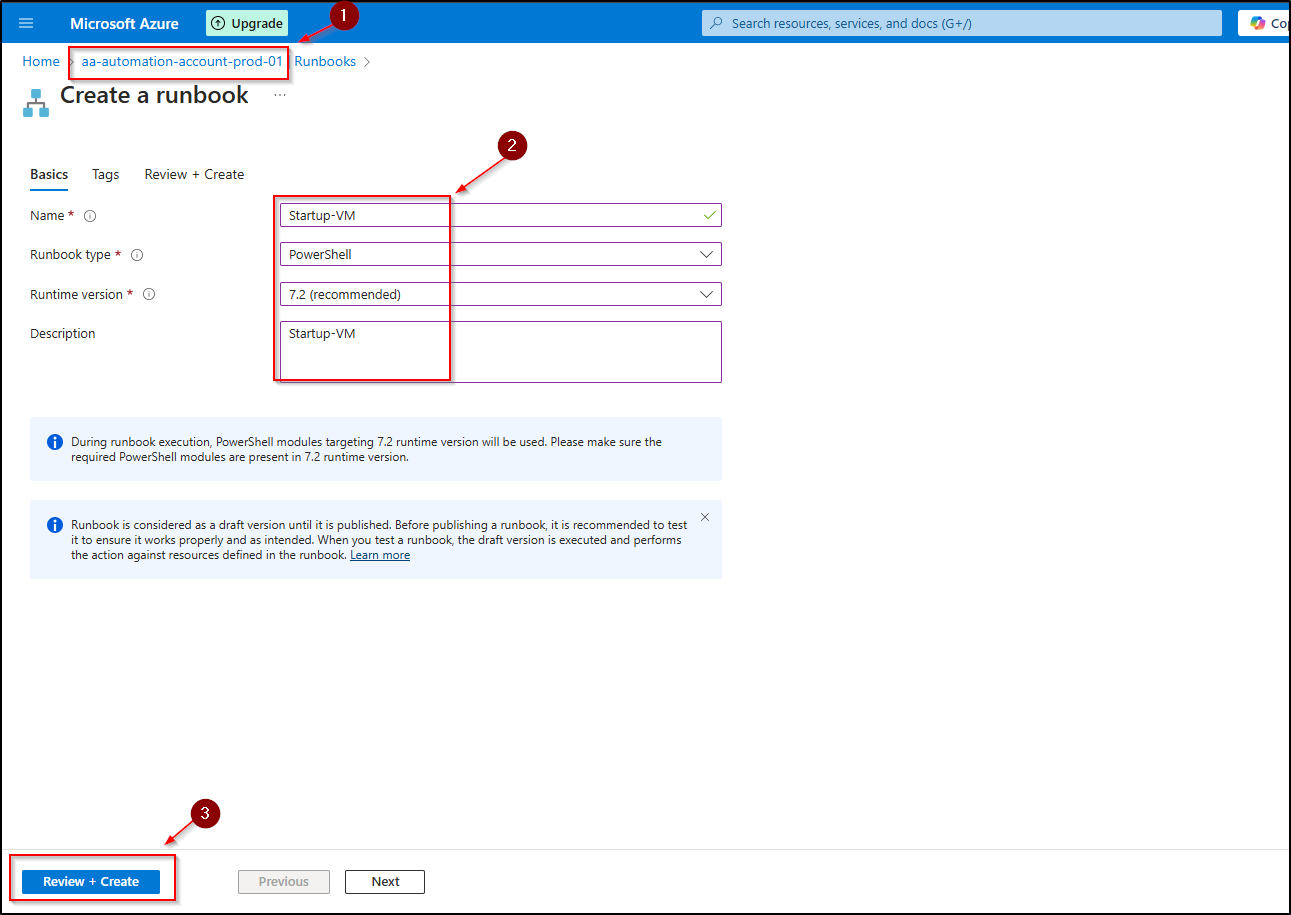
- Create another runbook:
- Runbook type: PowerShell
- Click Create
- Use the following PowerShell script in the editor:
param(
    [string]$resourceGroupName = "YourResourceGroupName",
    [string]$vmName = "YourVirtualMachineName"
)

# Authenticate to Azure
Connect-AzAccount -Identity

# Start the VM
Start-AzVM -ResourceGroupName $resourceGroupName -Name $vmName
Note: Remember to replace placeholder values (like YourResourceGroupName and YourVirtualMachineName) with your actual Azure resource information before implementing the solution. 4. Click Save and then Publish the runbook

4. Scheduling the Runbooks
Shutdown Schedule (10:00 PM)
- Open the
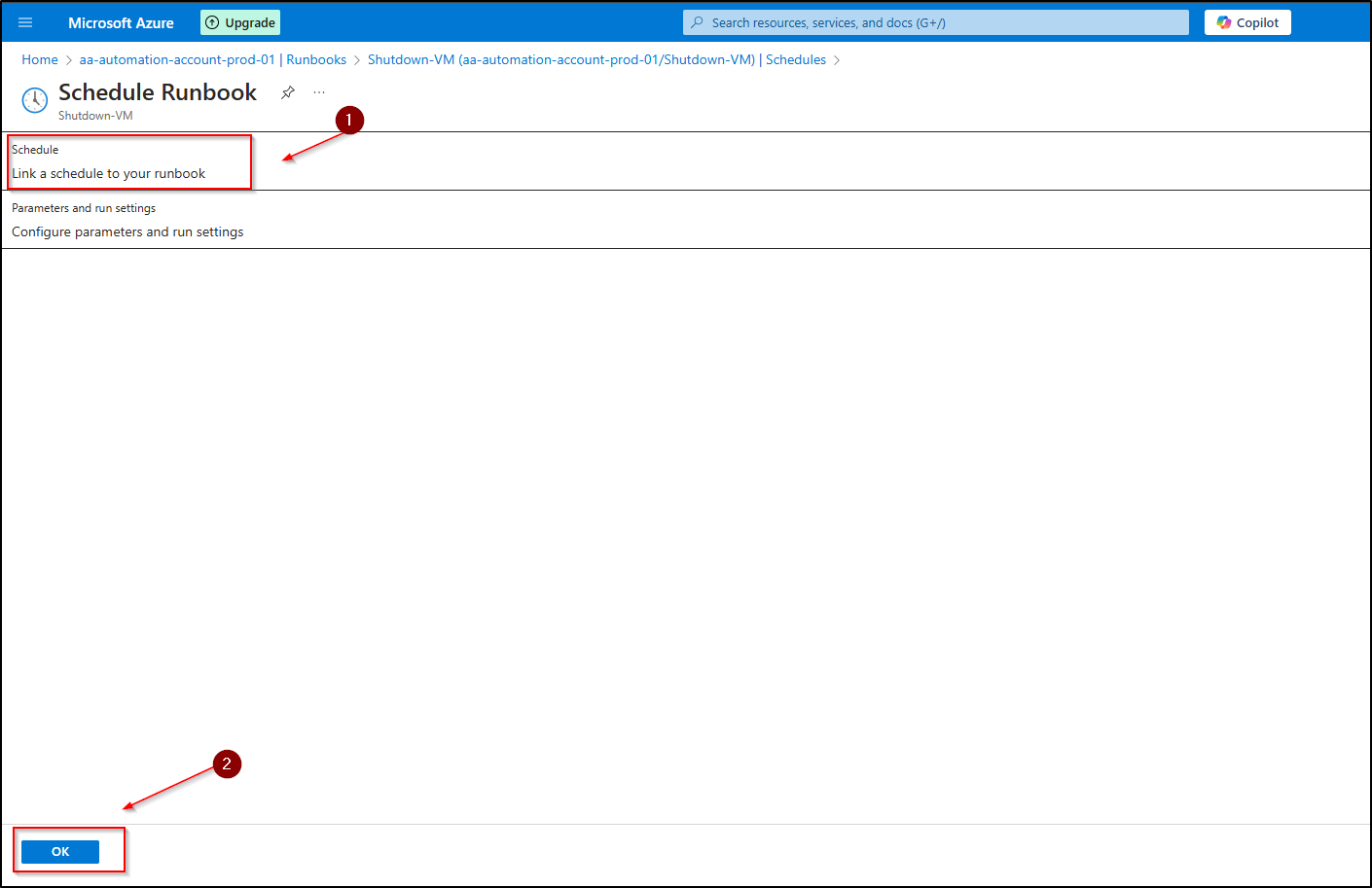
Shutdown-VMrunbook - Select "Schedules" and "Select Add a schedule"
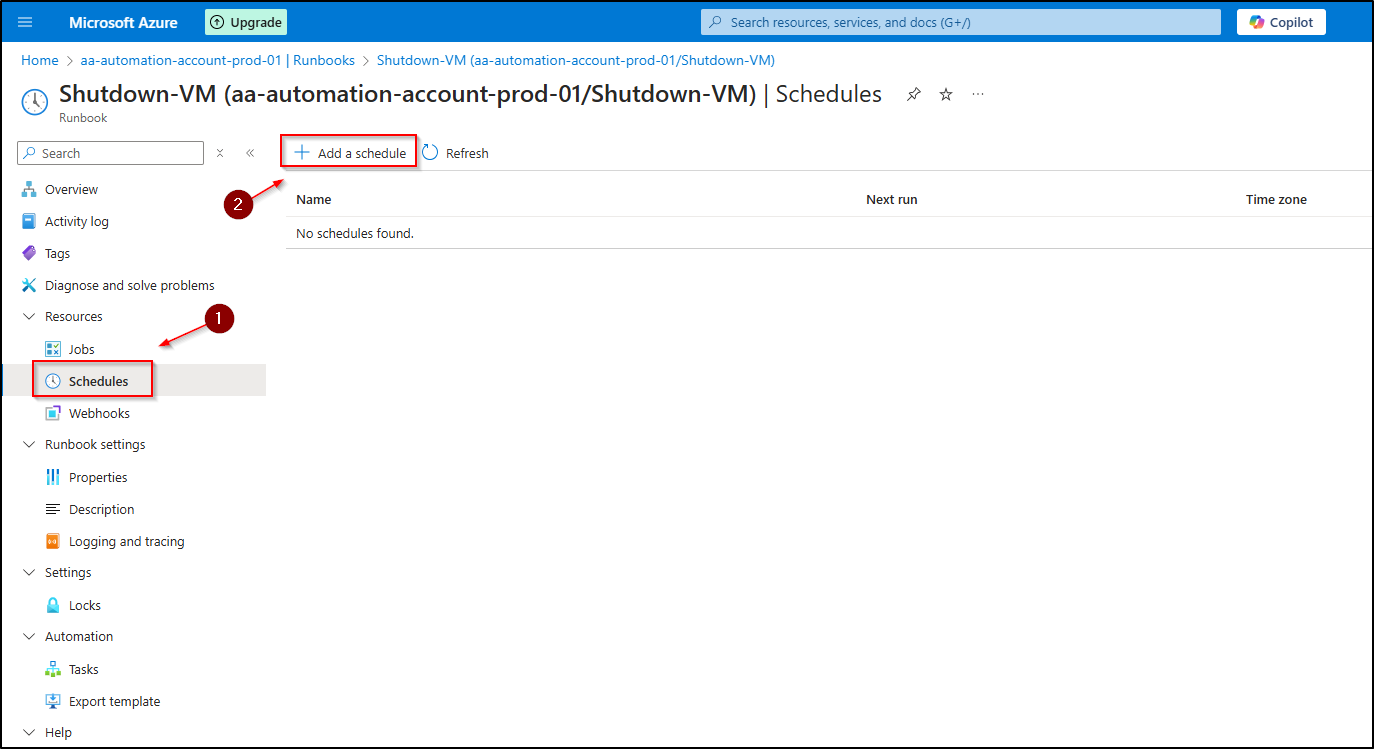
- Select Link a schedule to your runbook
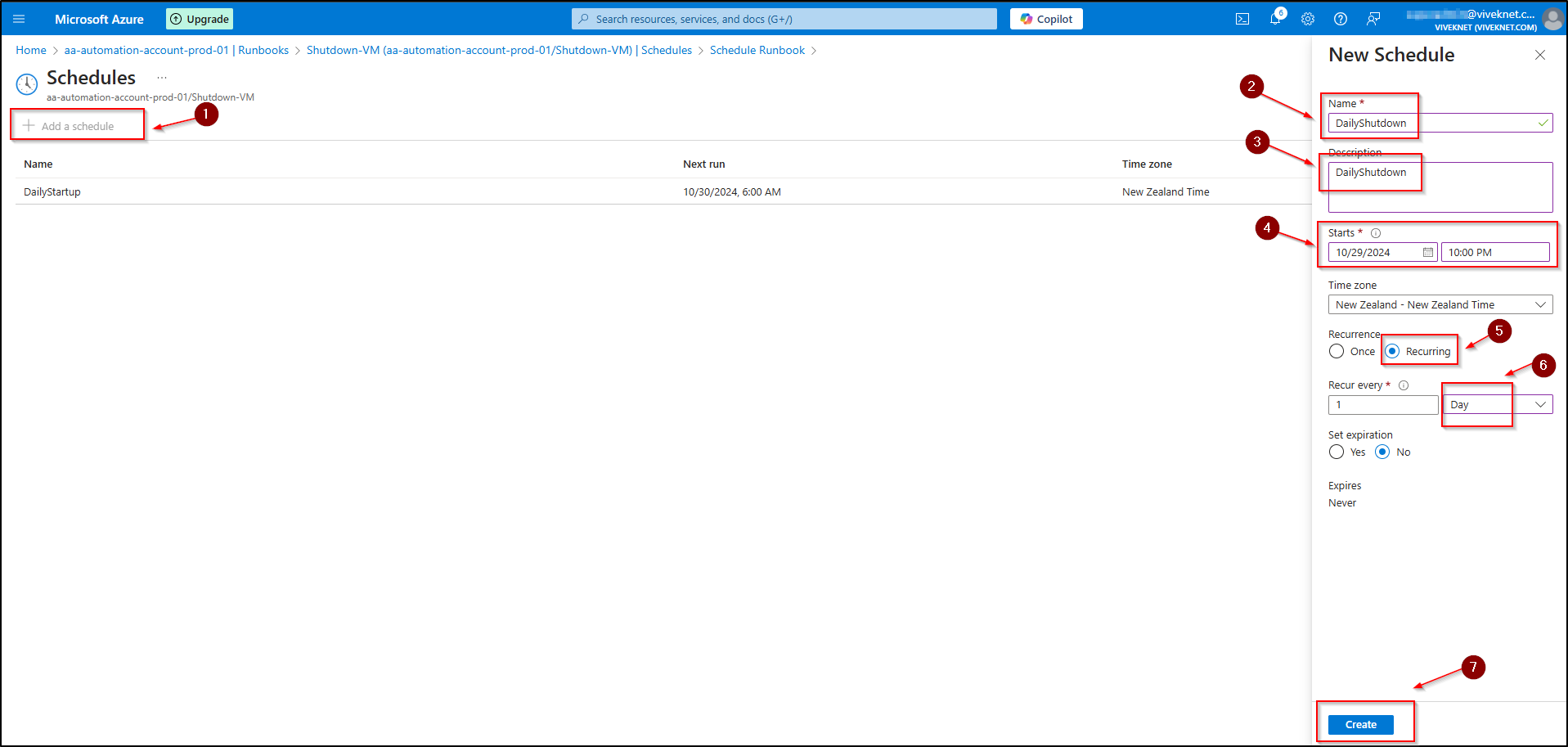
- Configure schedule:
- Name: DailyShutdown
- Recurrence: Recurring
- Recur every: 1 day
- Start time: 10:00 PM
Startup Schedule (6:00 AM)
- Open the
Startup-VMrunbook - Select Link a schedule to your runbook
- Configure schedule:
- Name: DailyStartup
- Recurrence: Recurring
- Recur every: 1 day
- Start time: 6:00 AM
Testing the Configuration
1. Test the Shutdown Runbook
- Navigate to your Automation Account
- Go to Runbooks under Process Automation
- Select the
Shutdown-VMrunbook - Click Start to open the runbook execution pane
- Enter the required parameters:
- Resource Group Name:
YourResourceGroupName - VM Name:
YourVirtualMachineName
- Resource Group Name:
- Click OK to start the runbook

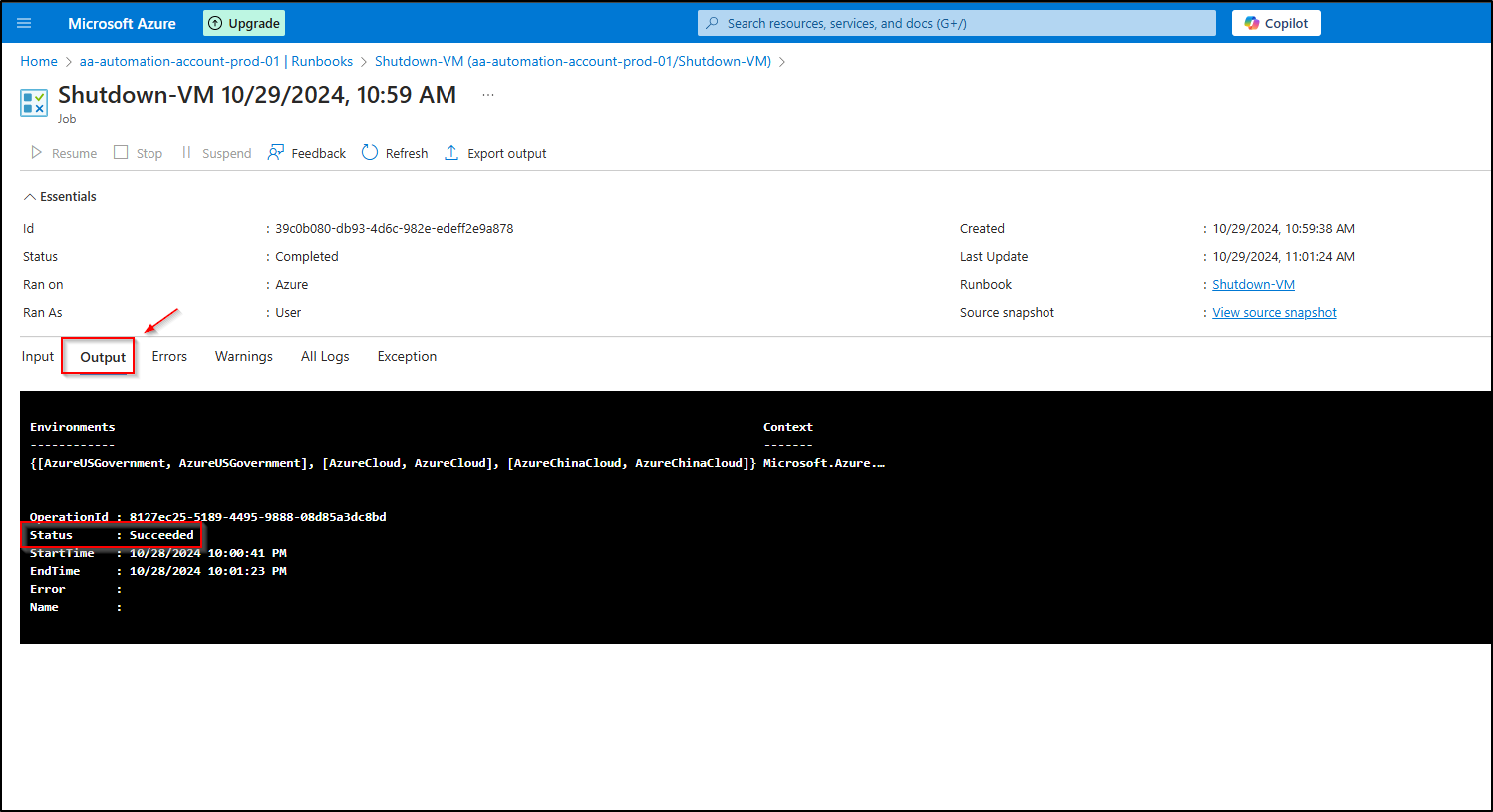
- Monitor the job output in real-time:
- Watch for successful authentication
- Check for VM status changes
- Verify completion message
- Validate in Azure Portal:
- Navigate to the Virtual Machine
- Confirm status shows "Stopped (deallocated)"
- Check the Activity Log for shutdown action
2. Test the Startup Runbook
- Navigate to your Automation Account
- Go to Runbooks under Process Automation
- Select the
Startup-VMrunbook - Click Start to open the runbook execution pane
- Enter the required parameters:
- Resource Group Name:
YourResourceGroupName - VM Name:
YourVirtualMachineName
- Resource Group Name:
- Click OK to start the runbook
- Monitor the job output in real-time:
- Watch for successful authentication
- Check for VM status changes
- Verify completion message
- Validate in Azure Portal:
- Navigate to the Virtual Machine
- Confirm status shows "Running"
- Check the Activity Log for startup action
Best Practices
- Always test runbooks during non-production hours
- Monitor the first few scheduled executions
- Keep resource group names and VM names updated in runbook parameters
- Regularly check automation account logs for any failures
Cost Benefits
Implementing this solution can lead to significant cost savings:
- Assuming a VM costs $100/day when running 24/7
- Running only 8 hours/day (6 AM - 10 PM) reduces runtime by 66%
- Potential monthly savings: ~$2,000 per VM
- Additional savings from reduced network, storage I/O costs
Alternative Approaches Considered
-
Windows Task Scheduler
- Pros: Simple to implement
- Cons: Requires dedicated server, no HA, limited monitoring
-
Azure DevOps Pipelines
- Pros: Familiar for DevOps teams
- Cons: More complex setup, potential cost implications
-
Azure Functions
- Pros: Serverless, cost-effective
- Cons: More complex to maintain, requires additional setup
Conclusion
Azure Automation Account provides an enterprise-grade solution for VM scheduling that is reliable, maintainable and cost-effective. The implementation is straightforward and can be easily adapted to manage multiple VMs across different resource groups and subscriptions.