Entra ID -Retrive Nested Group Member
Author: Vivek Chandran
Date: September 27, 2024
In today's complex enterprise environments, managing user access and group memberships in Azure Active Directory (now Microsoft Entra ID) can be a challenging task. One common scenario that often perplexes administrators is the need to retrieve all members of a group, including those nested within subgroups. To address this challenge, I have developed a powerful PowerShell script that simplifies this process and provides a comprehensive view of group memberships.
The Challenge of Nested Groups
Azure AD groups are a fundamental component of identity and access management. They allow administrators to organize users and manage permissions efficiently. However, when groups contain other groups (nested groups), retrieving a complete list of all members can become complicated. The native Azure AD cmdlets don't automatically traverse these nested structures, leaving administrators with an incomplete picture of group membership.
Introducing the Nested Group Member Retrieval Script
My PowerShell script, Get-NestedGroupMembers, is designed to overcome this limitation. It recursively traverses the group structure, identifying and listing all members, regardless of how deeply they're nested within subgroups.
Key Features
- Recursive Traversal: The script digs deep into the group hierarchy, ensuring no member is left undiscovered.
- Duplicate Removal: Members appearing in multiple nested groups are only listed once in the final output.
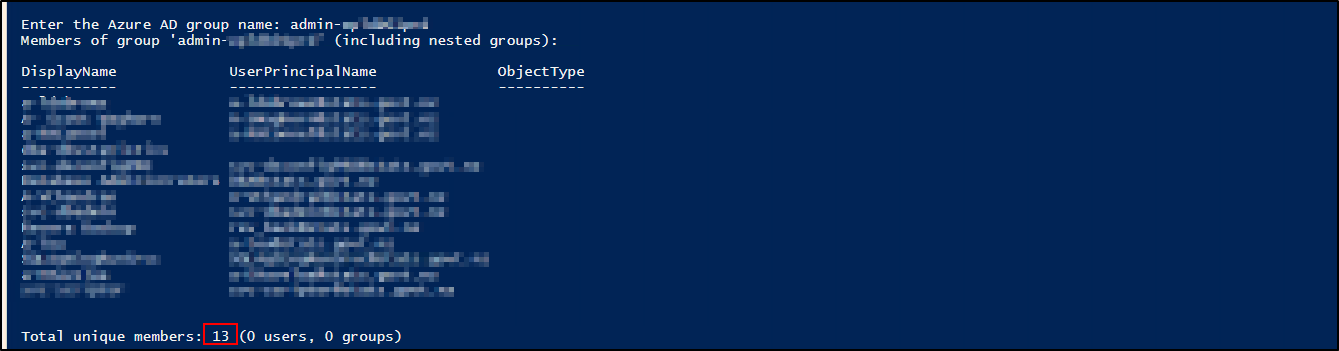
- Detailed Output: For each member, the script provides the display name, user principal name, and object type.
- Summary Statistics: A concise summary of the total unique members, broken down by users and groups, is provided at the end.
- Azure Connection Handling: The script checks for an active Azure connection and prompts for authentication if needed.
Use Cases
This script is invaluable for various scenarios:
- Access Audits: Quickly determine who has access to resources governed by a specific group.
- License Management: Identify all users who might be assigned licenses through group-based licensing.
- Security Reviews: Conduct comprehensive reviews of group memberships for security assessments.
- Organizational Changes: Easily review group memberships when restructuring departments or projects.
How It Works
The script utilizes several key functions:
Ensure-AzConnection: Checks for an active Azure connection and initiates one if necessary.Get-AllGroupMembers: A recursive function that retrieves members from a group and any nested groups.Get-NestedGroupMembers: The main function that orchestrates the process, handles user input, and formats the output.
Script
<#
.SYNOPSIS
    Retrieves all members of an Azure AD group, including members from any nested groups.

.DESCRIPTION
    This script retrieves and lists all members of an Azure AD group and recursively finds the members of any nested groups within that group.
    It handles multiple levels of nested groups, aggregates all members, and removes duplicates before displaying the final list.

.PARAMETER GroupName
    The DisplayName of the group whose members are to be retrieved. If not provided, the script will prompt for it.

.NOTES
    Author: Vivek Chandran
    Created: 12-09-2024

.EXAMPLE
    PS C:\> Get-NestedGroupMembers -GroupName "Your Group Name"

    Retrieves and lists all members, including those from nested groups.

.EXAMPLE
    PS C:\> Get-NestedGroupMembers

    Prompts for a group name, then retrieves and lists all members, including those from nested groups.
#>

param (
    [Parameter(Mandatory=$false)]
    [string]$GroupName
)

# Function to check if connected to Azure AD
function Ensure-AzConnection {
    try {
        $context = Get-AzContext
        if (-not $context) {
            Write-Host "Not connected to Azure. Connecting now..."
            Connect-AzAccount -ErrorAction Stop | Out-Null
        } else {
            Write-Host "Connected to Azure."
            Write-Host ""
        }
    } catch {
        Write-Error "Failed to connect to Azure: $_"
        exit
    }
}

function Get-AllGroupMembers {
    param (
        [Parameter(Mandatory = $true)]
        [string]$GroupId
    )

    $members = @(Get-AzADGroupMember -ObjectId $GroupId -WarningAction Ignore)

    foreach ($member in $members) {
        if ($member.OdataType -eq "#microsoft.graph.group") {
            $subgroupMembers = Get-AllGroupMembers $member.Id
            $members += $subgroupMembers
        }
    }

    return $members
}

function Get-NestedGroupMembers {
    param (
        [Parameter(Mandatory=$false)]
        [string]$GroupName
    )

    try {
        if (-not $GroupName) {
            $GroupName = Read-Host "Enter the Azure AD group name"
        }

        $group = Get-AzADGroup -DisplayName $GroupName

        if (-not $group) {
            Write-Host "Group '$GroupName' not found."
            return
        }

        $allMembers = Get-AllGroupMembers -GroupId $group.Id
        $uniqueMembers = $allMembers | Sort-Object -Property Id -Unique

        Write-Host "Members of group '$GroupName' (including nested groups):"
        $uniqueMembers | Format-Table DisplayName, UserPrincipalName, ObjectType -AutoSize

        $userCount = ($uniqueMembers | Where-Object { $_.ObjectType -eq 'User' }).Count
        $groupCount = ($uniqueMembers | Where-Object { $_.ObjectType -eq 'Group' }).Count
        Write-Host "Total unique members: $($uniqueMembers.Count) ($userCount users, $groupCount groups)"
    } catch {
        Write-Error "An error occurred: $_"
    }
}

# Main execution
Ensure-AzConnection
Get-NestedGroupMembers -GroupName $GroupName
Using the Script
Using the script is straightforward:
- Save the script to a file (e.g.,
Get-NestedGroupMembers.ps1). - Open a PowerShell session.
- Run the script with a group name:
.\Get-NestedGroupMembers.ps1 -GroupName "Your Group Name"Or run it without parameters to be prompted for the group name:
.\Get-NestedGroupMembers.ps1
The Power of Automation
This script demonstrates the power of automation in tackling complex administrative tasks. By leveraging PowerShell and the Azure AD module, I have created a script that saves time, reduces errors, and provides valuable insights into group structures that might otherwise remain hidden.
Conclusion
Managing group memberships in Azure AD doesn't have to be a headache. With scripts like this, administrators can quickly and accurately retrieve comprehensive group membership information, regardless of how complex the nested structure might be. This not only improves efficiency but also enhances security by providing a clear picture of access rights within your organization.
Whether you're conducting an audit, managing licenses, or simply need to understand your group structures better, this script is an invaluable addition to any Azure AD administrator's toolkit.