Retrieve Encryption Status of Azure Virtual Machines
Author: Vivek Chandran
Date: September 5, 2024
In most organizations, ensuring encryption of virtual machines (VMs) is a key compliance and security requirement, especially for C&A (Certification and Accreditation) processes. In this article, I'll explain how to use a PowerShell script I developed to get the encryption status of both the operating system and data disks of any Azure virtual machine.
This script makes it easy to check if encryption is enabled across all disks on any VM by querying all the subscriptions linked to your Azure account.
Key Features of the Script:
- Search Across Subscriptions: Automatically loops through all subscriptions in your Azure account to find the VM.
- Encryption Status: Retrieves and displays the encryption status for both the OS disk and data disks attached to the VM.
- User-Friendly: Prompts the user to log in to Azure if not already connected.
Prerequisites
To use this script, you need the following:
- Azure PowerShell Module: Ensure you have the Azure PowerShell module installed on your machine.
- Azure Account: You need to have an Azure account with permissions to access the subscriptions and virtual machines.
Installing Azure PowerShell Module
If you haven’t installed Azure PowerShell yet, you can do so using the following steps:
Step 1. Install via PowerShell Gallery
Open PowerShell as Administrator and run the following command:
Install-Module -Name Az -AllowClobber -Force
Step 2. Update the Az Module
If you already have the Az module installed, make sure it’s up to date by running:
Update-Module -Name Az
Step 3. Verify Installation
To ensure that the module is installed correctly, check the version by running:
Get-InstalledModule -Name Az
Script to Retrieve Encryption Status of Azure VM
Here's the PowerShell script i have written that retrieves the encryption status for the OS and data disks of a specified Azure virtual machine:
<#
.SYNOPSIS
    This script retrieves the encryption status of all disks attached to a specified Azure virtual machine.
    It searches across all subscriptions associated with the user's Azure account to find the VM.
    The script prompts for the VM name and outputs the encryption type for each data disk and the OS disk.

.AUTHOR
    Vivek Chandran

.DATE CREATED
    05-09-2024
#>

# Function to check if the user is already connected to Azure
function Check-AzConnection {
    try {
        # Attempt to get the current context
        $context = Get-AzContext
        if ($context -and $context.Account -and $context.Subscription) {
            Write-Host "Already connected to Azure as: $($context.Account)"
            return $true
        } else {
            return $false
        }
    } catch {
        return $false
    }
}

# Check if connected, if not prompt for login
if (-not (Check-AzConnection)) {
    Write-Host "Not connected to Azure. Please sign in."
    Connect-AzAccount | Out-Null
}

# Prompt the user for the VM name
$VMName = Read-Host -Prompt "Enter the name of the virtual machine"

# Get all subscriptions
$subscriptions = Get-AzSubscription

# Initialize a variable to track if the VM is found
$vmFound = $false

# Loop through each subscription
foreach ($subscription in $subscriptions) {
    # Set the context to the current subscription
    Set-AzContext -SubscriptionId $subscription.Id

    # Try to get the resource group containing the VM
    $resource = Get-AzResource -ResourceType "Microsoft.Compute/virtualMachines" -ResourceName $VMName -ErrorAction SilentlyContinue

    if ($resource) {
        # VM found in this subscription
        $vmFound = $true
        $ResourceGroupName = $resource.ResourceGroupName
        Write-Host "VM found in Subscription: $($subscription.Name), Resource Group: $ResourceGroupName"
        Write-Host ""

        # Get the VM object
        $vm = Get-AzVM -ResourceGroupName $ResourceGroupName -Name $VMName

        # Get the encryption status for each data disk attached to the VM
        foreach ($disk in $vm.StorageProfile.DataDisks) {
            # Get the disk details
            $diskDetails = Get-AzDisk -ResourceGroupName $ResourceGroupName -DiskName $disk.Name

            # Display disk name and encryption type
            Write-Host "Disk Name: $($diskDetails.Name)"
            Write-Host "Encryption Type: $($diskDetails.Encryption.Type)"
            Write-Host ""
        }

        # Get the encryption status for the OS disk
        $osDiskDetails = Get-AzDisk -ResourceGroupName $ResourceGroupName -DiskName $vm.StorageProfile.OsDisk.Name

        # Display OS disk name and encryption type
        Write-Host "OS Disk Name: $($osDiskDetails.Name)"
        Write-Host "Encryption Type: $($osDiskDetails.Encryption.Type)"
        Write-Host ""


        break # Exit the loop as we have found the VM
    }
}

if (-not $vmFound) {
    Write-Host "VM not found in any of the subscriptions associated with this account."
}
How to Use This Script
Step 1: Save the Script
Copy and save the above script into a .ps1 file, for example, Get-AzVMEncryptionStatus.ps1.
Step 2: Run the Script
Open PowerShell and navigate to the folder where you saved the script. Execute the script using the following command:
.\Get-AzVMEncryptionStatus.ps1 -VMName "<Your-VM-Name>"
Replace "
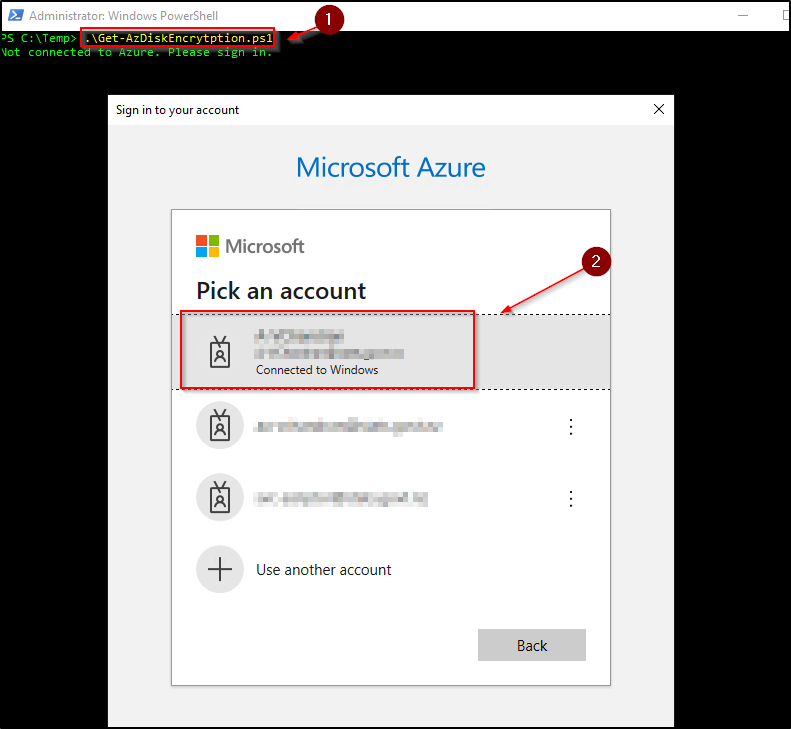
Step 3: Azure Login
If you are not already logged into Azure, the script will prompt you to sign in using Connect-AzAccount.
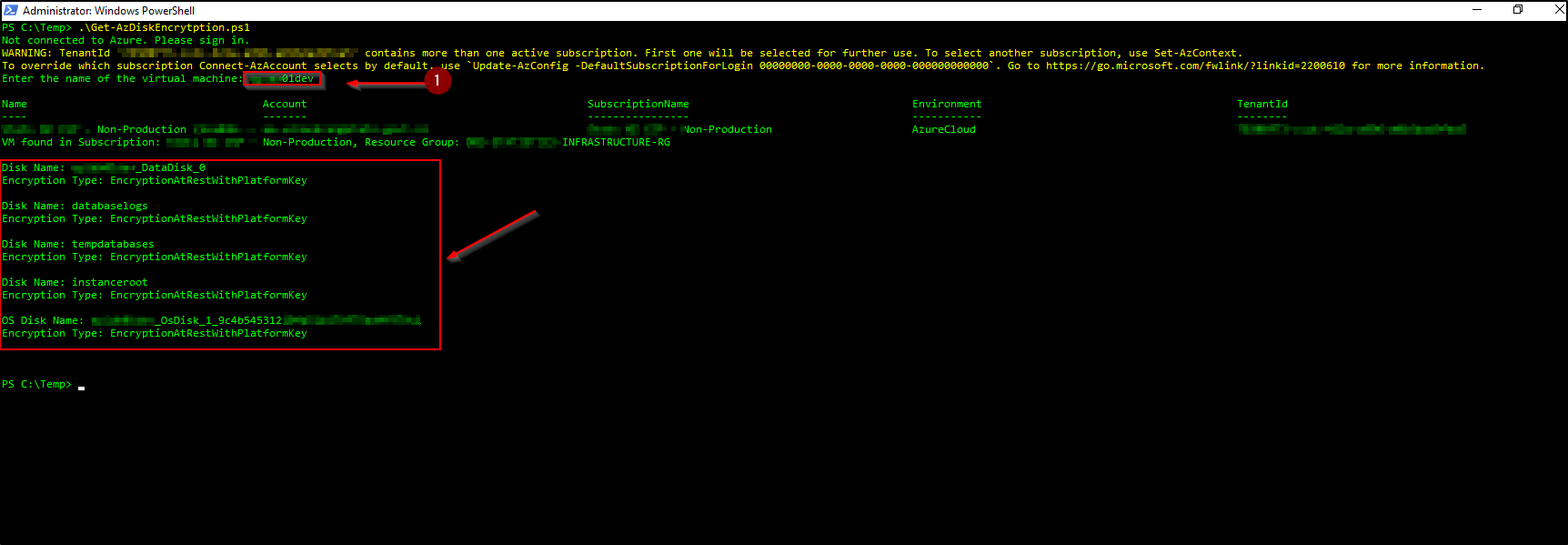
Step 4: Review Encryption Status
The script will display the encryption type for both the OS disk and any data disks attached to the VM.
Sample output:
VM found in Subscription: <SubscriptionName>, Resource Group: <ResourceGroupName>
Disk Name: <DataDiskName>
Encryption Type: <EncryptionType>
----------------------------
OS Disk Name: <OSDiskName>
Encryption Type: <EncryptionType>
----------------------------
Conclusion
This PowerShell script provides a streamlined way to check the encryption status of Azure virtual machines. By automating the process of checking disk encryption, it helps ensure compliance and security, making it easier to provide evidence for audits and certification processes.
Feel free to adapt and extend the script according to your organizational needs. I hope it simplifies your Azure VM management tasks!